Adding and managing scouts
How to add a scout one at a time, edit their birthday/rank/den or patrol, move them to a different family, promote a group of scouts at once, or delete a scout.
Scouts don't have their own MyTroop accounts — they're records that live inside a family, managed by the adults and admins who look after them. There are two places to add or edit a scout, and they work a little differently.
Adding a scout from Admin > Scouts
This is the roster view of every scout in the troop, and the fastest way to add one to any family.
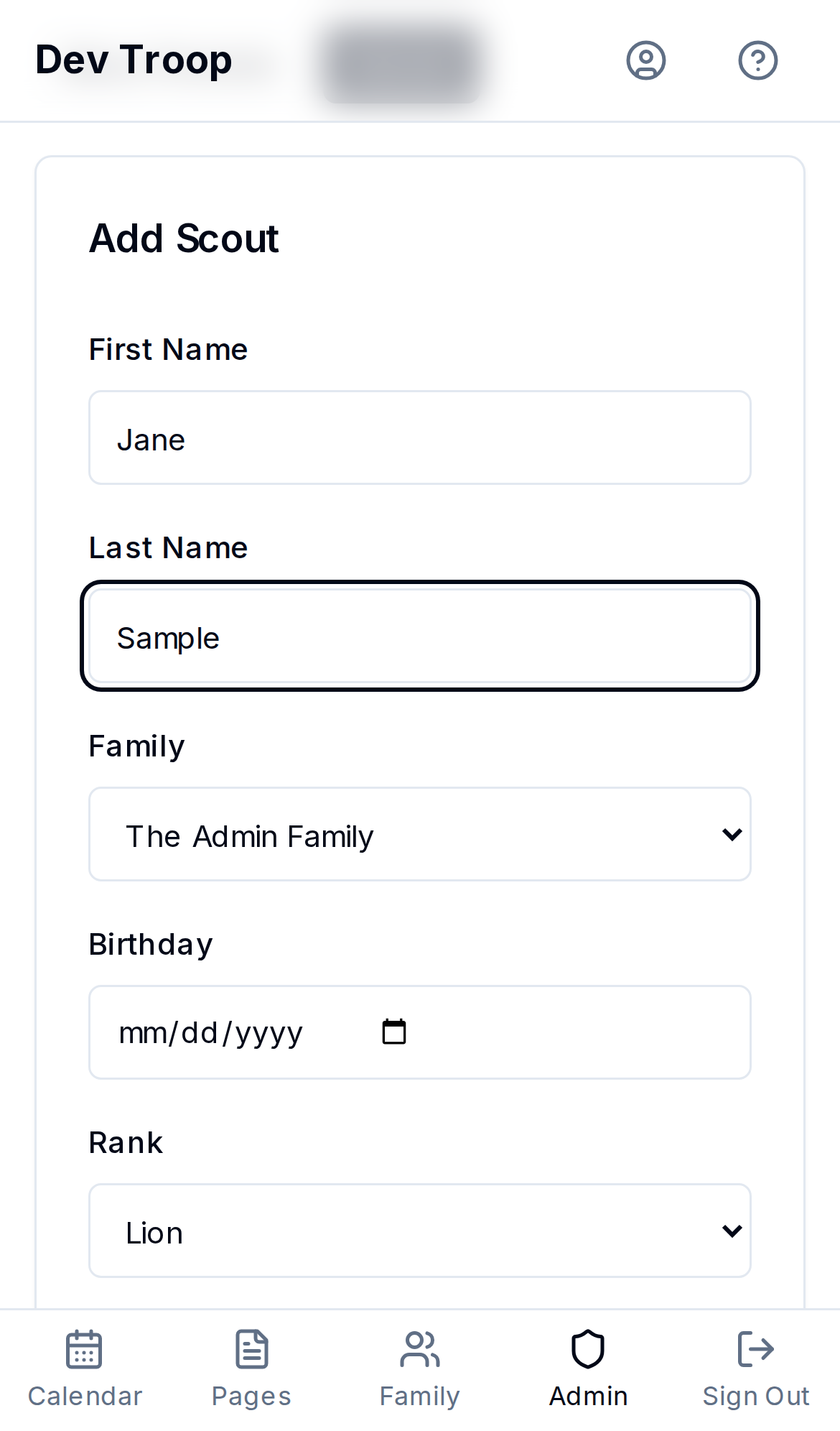
- Click Add Scout.
- Enter First Name and Last Name (both required).
- Pick a Family from the dropdown, or choose + Create new family and type a family name if this scout's household doesn't exist yet.
- Optionally fill in Birthday, Rank, and their Den (Cub Scouts) or Patrol (Scouts BSA), and BSA Number.
- Click Add Scout to save.
Adding a scout from a family's page
From /family, an admin viewing any family can click Add Scout to go straight to that family's own add-scout form — useful when you're already looking at the right household and don't want to hunt for it in the family picker. It asks for the same First Name, Last Name, Birthday, and Rank, just without the family dropdown (it's scoped to the family you started from).
Editing a scout
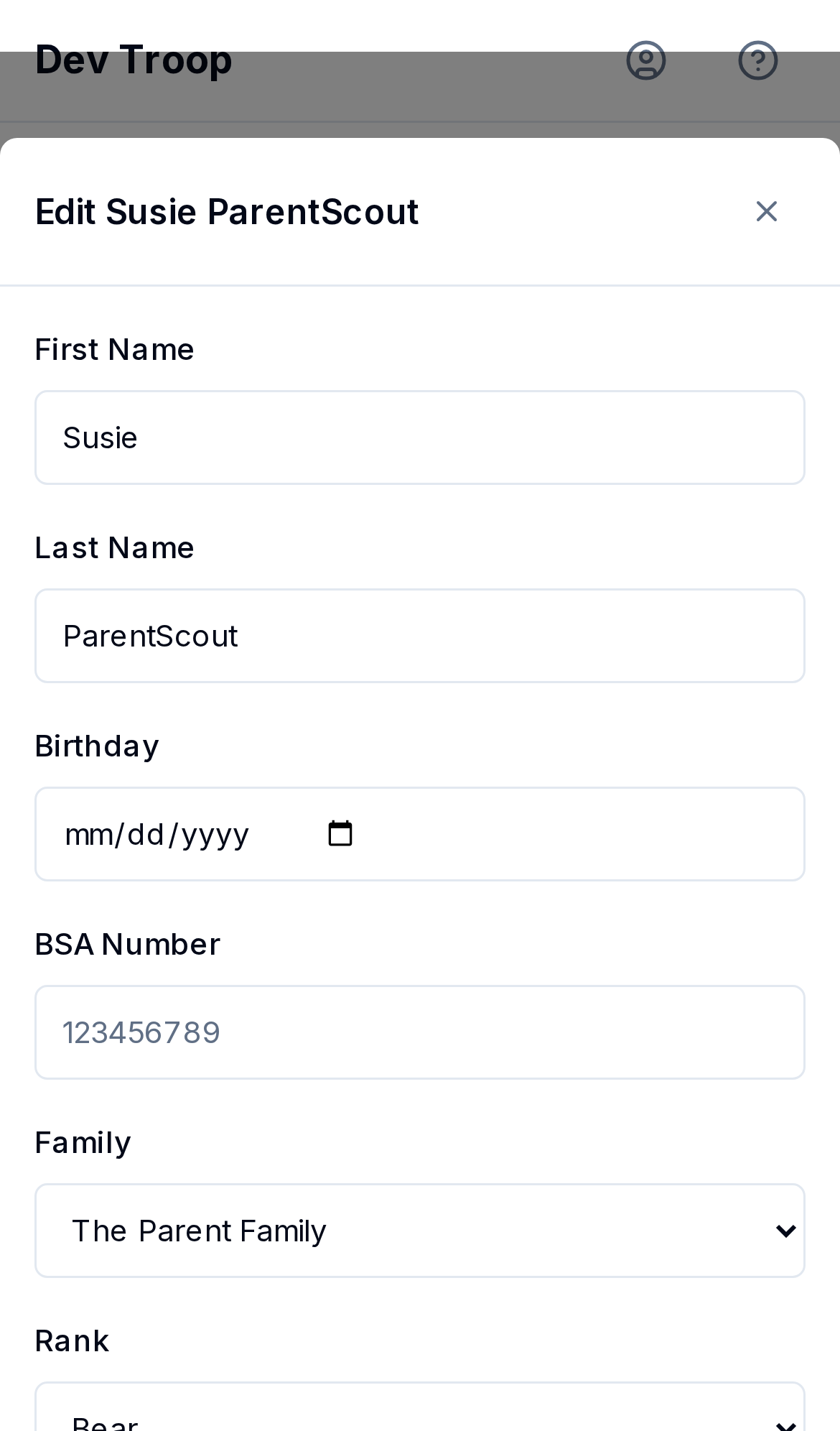
Click a scout's row in Admin > Scouts to open the edit dialog. You can change their name, birthday, rank, BSA number, and den/patrol — and, unlike the add-scout form, move them to a different family. Reassigning a family moves the scout's record between households; nothing else about the scout changes.
Mass Promote
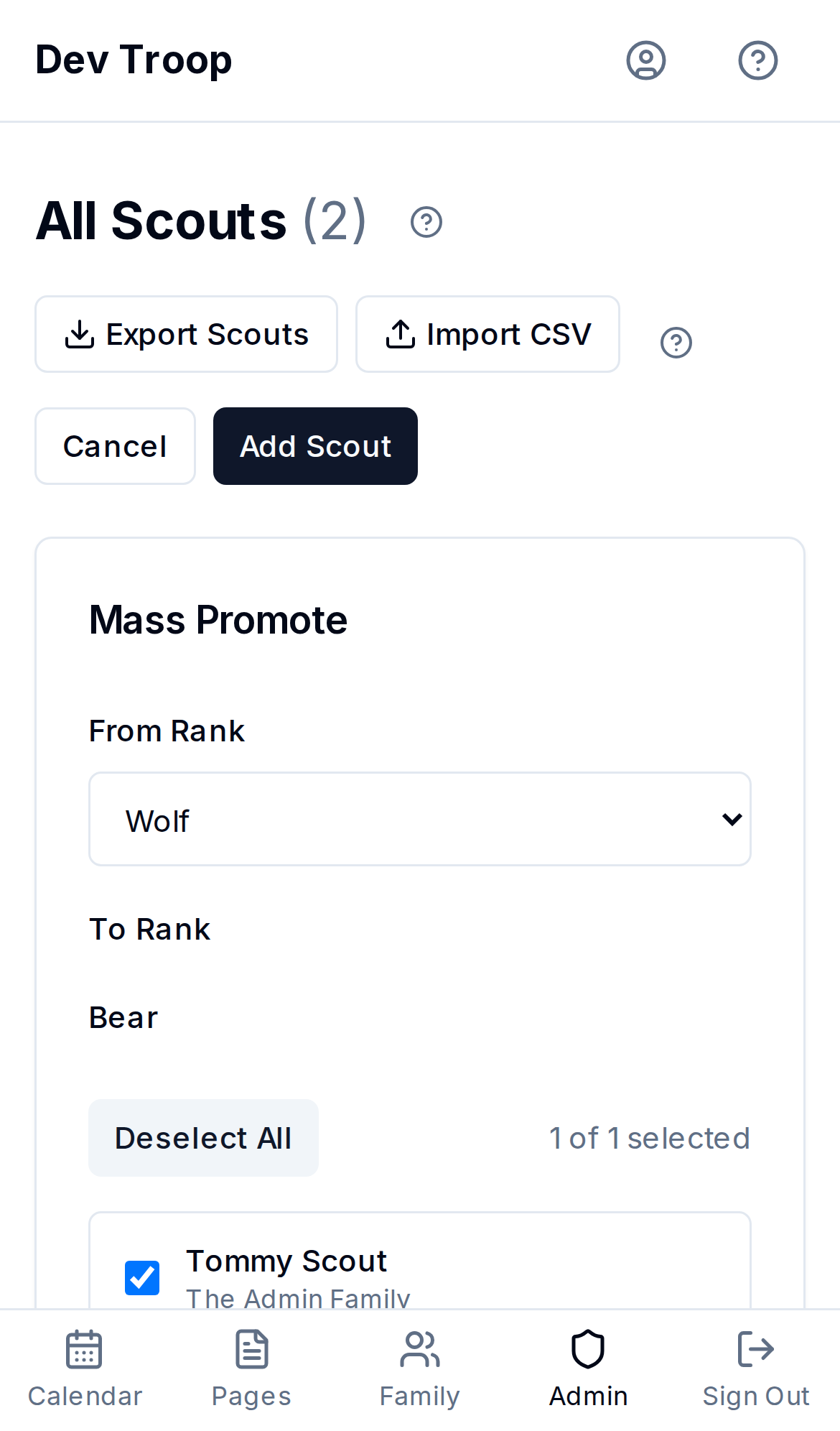
At the end of a program year, promoting an entire den or patrol one scout at a time is tedious. Mass Promote (next to Add Scout on Admin > Scouts) does it in bulk:
- Click Mass Promote.
- Pick a from rank — the list of scouts currently at that rank appears below.
- Check the scouts to promote, or use Select All.
- Click Promote and confirm. Everyone selected moves up one rank (e.g., Tenderfoot → Second Class).
Terminal ranks (Eagle Scout, Arrow of Light) aren't offered as a "from" rank — there's nowhere further to promote to.
Deleting a scout
Open the scout from Admin > Scouts and delete them from the edit dialog. This removes their record entirely, including from any past event rosters — there's no undo, so double-check you have the right scout first.
Who can do this
Both Admins and Leaders can add, edit, and delete scouts from Admin > Scouts. Only Admins can use the per-family add-scout link on /family. Parents can see their own family's scouts but can't add, edit, or delete them.
Bulk adding scouts
Adding scouts one at a time doesn't scale for onboarding a whole troop at the start of the year. See Bulk importing and exporting scouts (CSV) for uploading a spreadsheet instead.
Related articles
Bulk importing and exporting scouts (CSV)
Download a CSV template, bulk-add scouts with a spreadsheet, and export your full scout roster — including required columns, how families and dens/patrols are matched, and how import errors are reported.
Families — the unit MyTroop is built around
How users group into families, why scouts attach to families instead of individuals, and how to manage family membership.
Dens and patrols — organizing scouts into groups
How dens (Cub Scouts) and patrols (Scouts BSA) work, how to create a patrol or assign a den leader, and how to move scouts between groups.
Adding a user
How to create a new account in your troop and what the new user receives.