Bulk importing and exporting scouts (CSV)
Download a CSV template, bulk-add scouts with a spreadsheet, and export your full scout roster — including required columns, how families and dens/patrols are matched, and how import errors are reported.
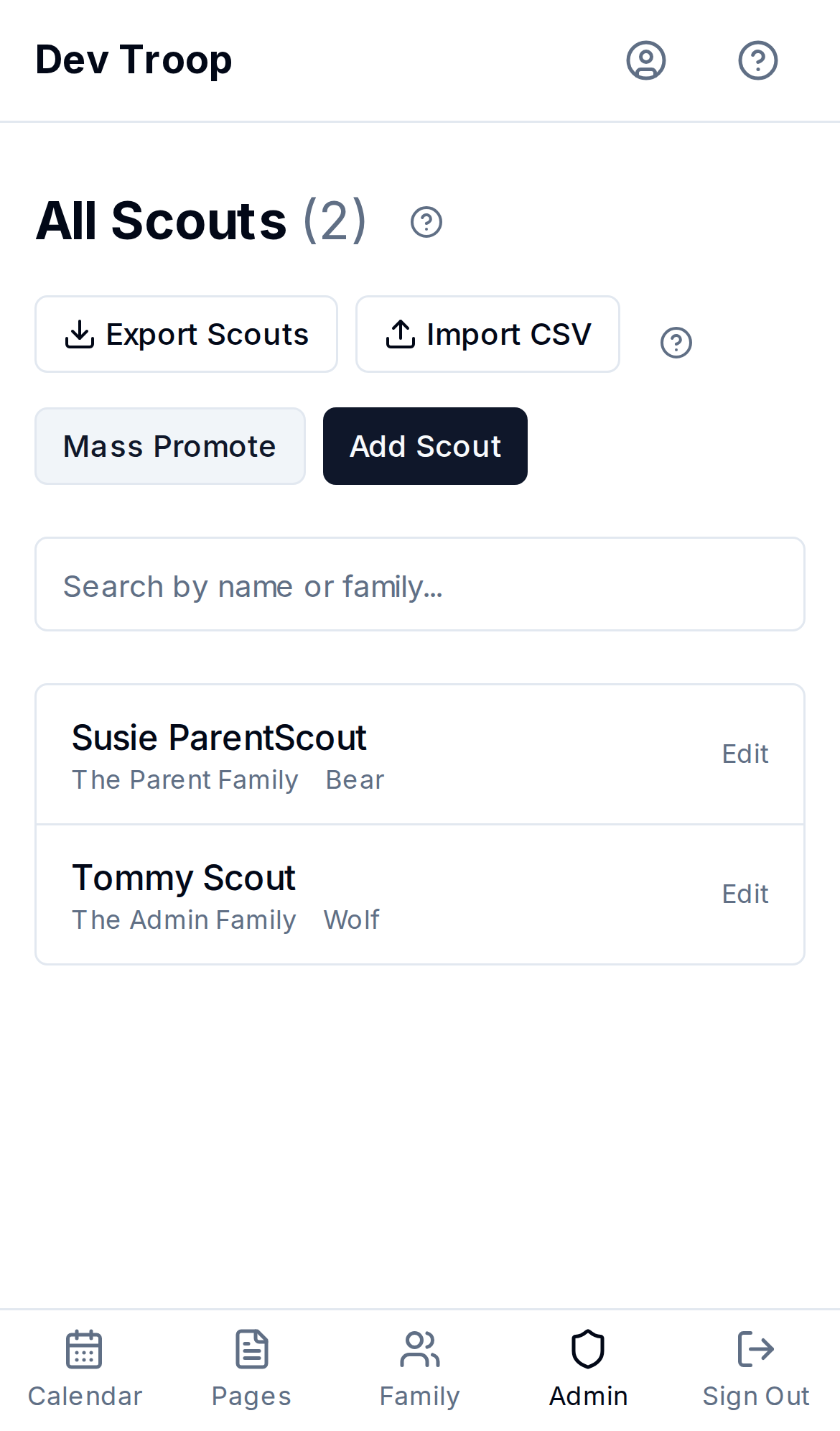
Adding scouts one at a time doesn't scale for onboarding a whole troop at the start of a program year. Both Admin > Scouts and Admin > Import/Export have Export and Import buttons for the full scout roster.
The CSV format
| Column | Required | Notes |
|---|---|---|
firstName | Yes | |
lastName | Yes | |
familyName | Yes | Matched case-insensitively against existing families. No match? A new family is created automatically — check for near-duplicate spellings first, since MyTroop won't catch "Smith Family" vs. "The Smiths" for you. |
birthday | No | YYYY-MM-DD |
rank | No | The rank's display name (e.g. "Tenderfoot") or its internal key. Must be a valid rank for your troop's program. |
groupName | No | Must match an existing den or patrol name exactly (case-insensitive) — unlike families, groups are not auto-created. Create the den/patrol first (see Dens and patrols) if it doesn't exist yet. |
bsaNumber | No | Numeric, up to 20 digits. |
Click Download template CSV in the import dialog for a starter file with one correctly formatted example row.
Importing
- Click Import CSV on Admin > Scouts, or Import Scouts on Admin > Import/Export — same dialog either way.
- Drag a CSV onto the drop zone, or Browse Files.
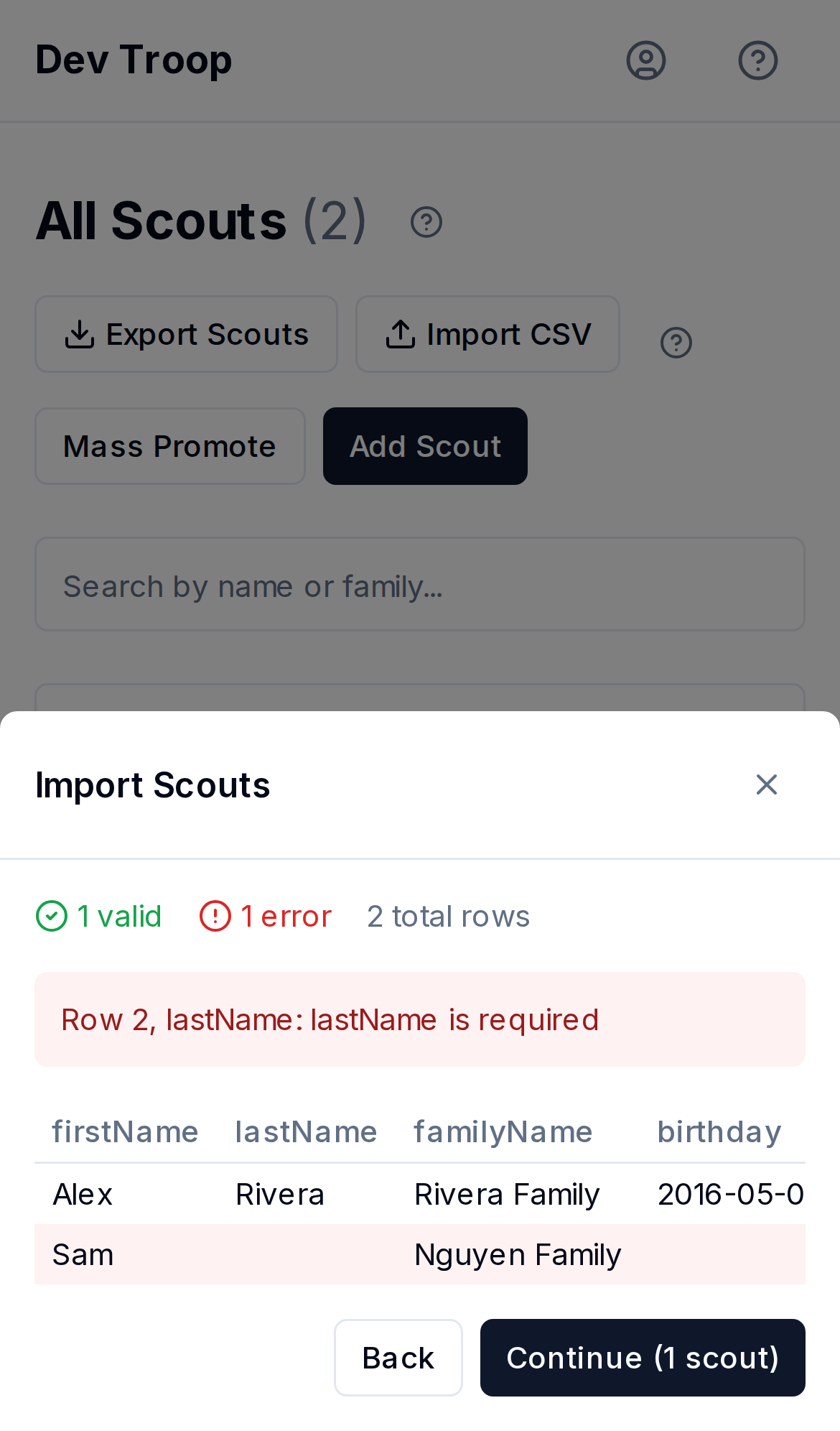
- Review the preview: valid rows are counted in green, and any row with a problem shows what's wrong (a required field missing, an unrecognized rank, a group name that doesn't match).
- Click Import to confirm — rows with errors are skipped, and you're told how many.
- Watch the progress bar. Don't close the dialog while it's importing.
- The results screen reports how many scouts were created and lists any that failed and why.
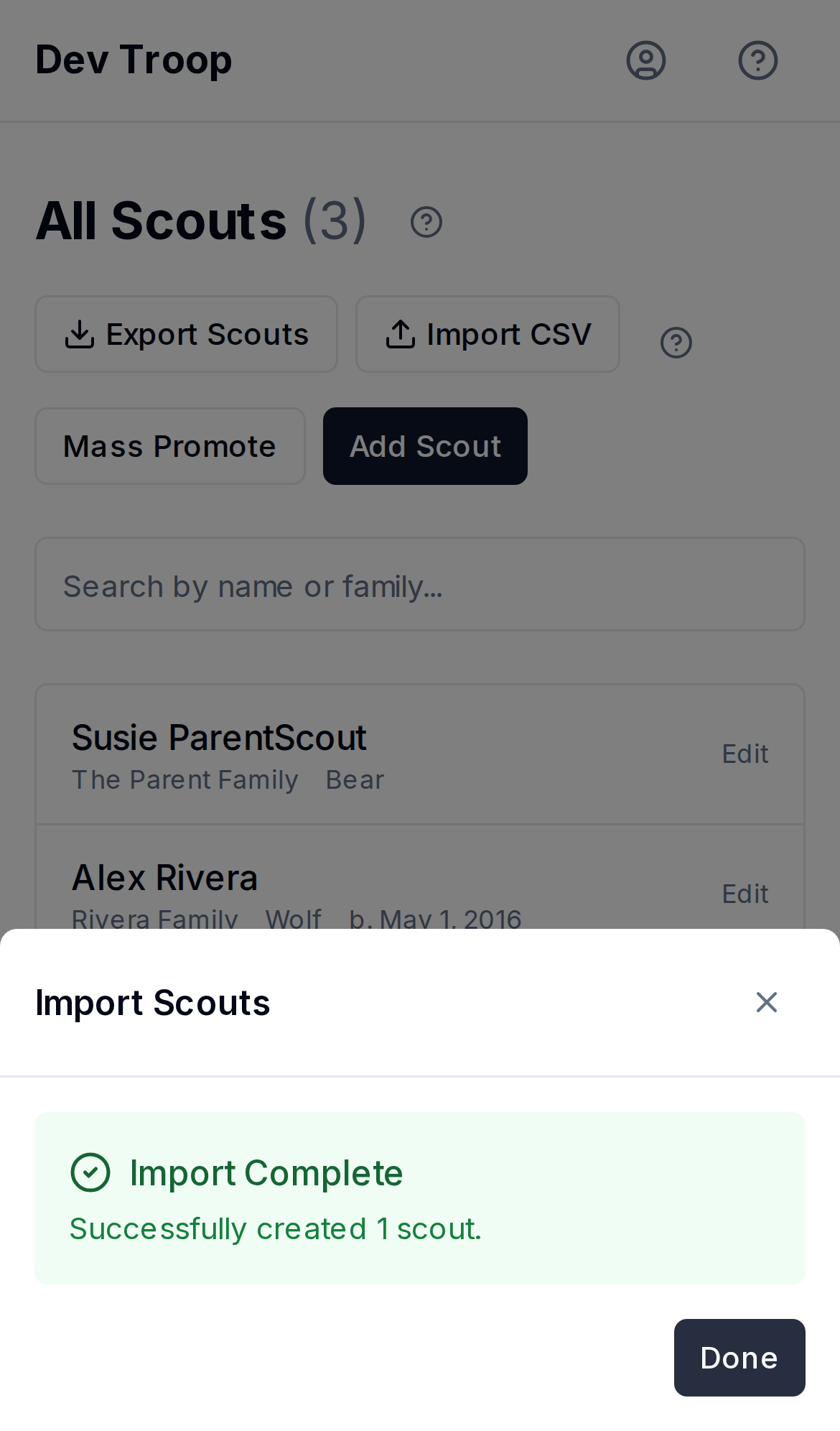
Importing is create-only — re-importing the same file creates duplicate scouts rather than updating existing ones. There's no "update via CSV" option today; edit existing scouts individually or from Admin > Scouts.
Exporting
Export Scouts downloads every scout in the troop as a CSV with the same columns, including their current family, rank, and den/patrol names — useful as a backup, or as a starting point for a bulk edit you'll paste back in as a fresh import (remember: re-importing adds new scouts, it doesn't update the ones already there).
Who can do this
Admins and Leaders. If the Export/Import buttons are greyed out, the page is still loading the families and dens/patrols it needs to validate rows against — wait a moment and they'll enable.
Related articles
Adding and managing scouts
How to add a scout one at a time, edit their birthday/rank/den or patrol, move them to a different family, promote a group of scouts at once, or delete a scout.
Import and Export overview
The Admin > Import/Export page in one place — bulk CSV for scouts, adults, and events, plus importing an outside ICS calendar feed.